
UTM URL Builder
The UTM URL Builder helps you create special tracking links for your digital marketing campaigns. These links tell you exactly where your website visitors came from - whether it's an email, social media post, or online advert.
Think of it like this: Instead of wondering "which Facebook post brought people to my website?", you'll know exactly which one worked best.
Why Use Tracking Links?
Without tracking links, all your website visitors look the same in your analytics. You can't tell if someone came from your newsletter, your Instagram post, or a Google advert.
With tracking links, you can:
- See which marketing campaigns are working
- Know which social media posts drive the most visitors
- Understand which emails get the best response
- Make better decisions about where to spend your marketing budget
Getting Started
What You'll Need
- The webpage you want to promote - This could be your homepage, a product page, or a special landing page
- Information about your campaign - Where you're sharing the link and what campaign it's part of
That's it! The tool does the rest.
How to Create Your Tracking Link
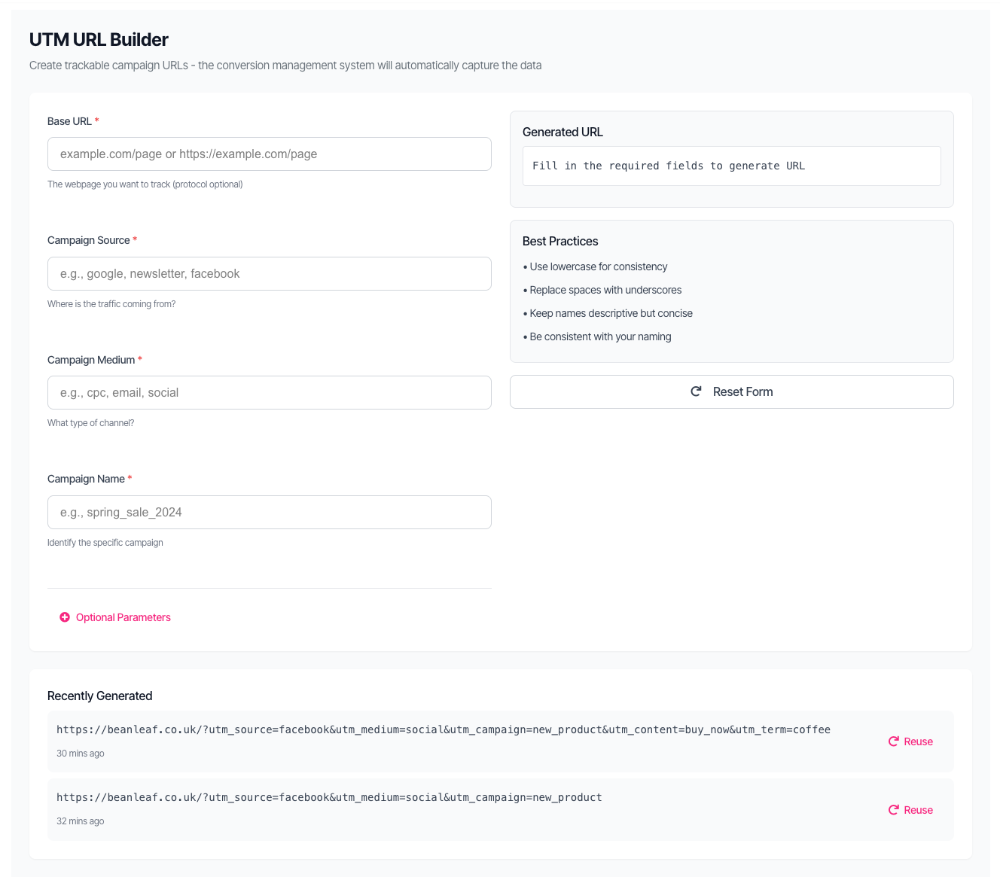
Step 1: Enter Your Website Address
In the Base URL field, type the webpage address you want people to visit.
Examples:
- Your homepage:
yourwebsite.com - A product page:
yourwebsite.com/products/summer-collection - A special offer:
yourwebsite.com/black-friday-sale
Don't worry about the "https://" bit - the tool adds it automatically if you forget!
Step 2: Tell Us Where The Link Will Be Shared
Fill in these three required fields:
Campaign Source
What this means: Where are you sharing this link?
Examples:
Facebook- if you're posting on FacebookNewsletter- if you're sending it in an emailInstagram- if you're posting on InstagramGoogle- if you're running Google adverts
Tip: Use names you'll recognise later. "Newsletter" is clearer than "Email_blast_v2"
Campaign Medium
What this means: What type of marketing is this?
Examples:
Social- for social media postsEmail- for newsletters and email campaignsCPC- for paid adverts (Cost Per Click)Referral- if someone else is sharing your link
Common choices:
- Posting on Facebook? Use "Social"
- Sending an email? Use "Email"
- Running an advert? Use "CPC"
Campaign Name
What this means: What's this specific campaign called?
Examples:
Spring Sale 2024- for a seasonal promotionProduct Launch- when launching something newNewsletter January- for your monthly emailWebinar Sign Up- promoting an event
Tip: Make it descriptive so you'll remember what it was in six months!
Step 3: Optional Extras (Advanced Users Only)
Click Optional Parameters if you want to track even more detail. Most people don't need these!
Campaign Content
Use this if you're testing different versions of the same link.
Example: If you have two buttons in the same email, you could use:
Top Buttonfor the button at the topBottom Buttonfor the button at the bottom
Campaign Term
This is mainly for Google Ads users to track specific keywords.
Step 4: Get Your Link!
Once you've filled in the fields, your tracking link appears in the Generated URL box.
What you'll see: Your original link with extra tracking code added to the end. It looks something like:
https://yourwebsite.com?utm_source=facebook&utm_medium=social&utm_campaign=spring_sale_2024
Don't panic! It's meant to look long. That extra code is what makes the tracking work.
Step 5: Copy and Use Your Link
Click the Copy URL button - the link is now on your clipboard, ready to paste wherever you need it!
Where to use it:
- Paste it into your Facebook post
- Add it to your email newsletter
- Use it in your Instagram bio link
- Include it in your adverts
Smart Features (The Tool Does This Automatically!)
URLs Without "https://"
Type yourwebsite.com and the tool automatically makes it https://yourwebsite.com ✨
Spaces in Campaign Names
Type Spring Sale 2024 and the tool automatically converts it to spring_sale_2024 - perfect for links!
Why? Spaces don't work in URLs, and keeping everything lowercase makes your tracking more consistent.
Real-World Examples
Example 1: Promoting a Sale on Facebook
Scenario: You're running a Black Friday sale and want to know if your Facebook post drives visitors.
What to fill in:
- Base URL:
yourwebsite.com/black-friday - Campaign Source:
Facebook - Campaign Medium:
Social - Campaign Name:
Black Friday 2024
Your tracking link:https://yourwebsite.com/black-friday?utm_source=facebook&utm_medium=social&utm_campaign=black_friday_2024
Now you'll know: How many people came from that specific Facebook post!
Example 2: Email Newsletter
Scenario: You send a monthly newsletter and want to see which edition gets the most clicks.
What to fill in:
- Base URL:
yourwebsite.com - Campaign Source:
Newsletter - Campaign Medium:
Email - Campaign Name:
November Newsletter
Your tracking link:https://yourwebsite.com?utm_source=newsletter&utm_medium=email&utm_campaign=november_newsletter
Now you'll know: Which newsletter drove the most traffic!
Example 3: Instagram Bio Link
Scenario: You're updating the link in your Instagram bio for a new product launch.
What to fill in:
- Base URL:
yourwebsite.com/new-product - Campaign Source:
Instagram - Campaign Medium:
Social - Campaign Name:
Product Launch 2024
Your tracking link:https://yourwebsite.com/new-product?utm_source=instagram&utm_medium=social&utm_campaign=product_launch_2024
Now you'll know: How much traffic comes from your Instagram profile!
Recently Generated Links
The tool automatically saves your last few links so you can reuse them or use them as templates for similar campaigns.
To reuse a link:
- Look at the Recently Generated section at the bottom
- Click Reuse next to any saved link
- The form fills in automatically
- Change what you need (maybe just the campaign name?)
- Copy your new link!
Common Questions
"Why does my link look so long and weird?"
That's normal! The extra code on the end is what makes tracking work. Your visitors won't see it - they'll just go to your website as usual. Behind the scenes, you'll be able to see where they came from.
"Do I need to fill in all the fields?"
You must fill in:
- Base URL
- Campaign Source
- Campaign Medium
- Campaign Name
The optional fields (Content and Term) are only if you need extra detail.
"Can I edit a link after I've created it?"
No - once a link is created, it's fixed. But you can always create a new one! Use the Reuse button to load a previous link and make changes.
"What if I make a mistake?"
Just click the Reset Form button to clear everything and start again.
"Where can I see the results?"
Your tracking data appears in your conversions dashboard. You'll be able to see reports showing which campaigns drove the most visitors.
"Do these links expire?"
No! They work forever. You can create a link today and use it next year - it'll still track correctly.
Troubleshooting
"It says 'Invalid URL format'"
Check that:
- You've entered a proper website address
- You haven't included spaces or special characters
- Try adding
https://at the beginning
"The Copy button isn't working"
Make sure:
- You've filled in all the required fields (marked with *)
- Your browser allows the website to access your clipboard
- Try clicking it again - sometimes it just needs a second click!
"I can't see my recently generated links"
This might mean:
- You're using a different browser or device
- Your browser privacy settings are blocking storage
- You haven't generated any links yet in this session
Need More Help?
If you're stuck or something isn't working as expected, contact the SERP360 support team. They're here to help.