
SEO Analysis
The SEO Analysis tool examines any webpage and reveals how well it's optimised for your target keyword. You'll see exactly where your keyword appears, spot structural issues, and identify quick improvements to boost your search rankings. The built-in AI analysis then generates specific, copy-paste ready recommendations to fix every issue found.
Getting started
Step 1: Enter your target keyword
Type the main keyword you want your page to rank for. This is the phrase your customers search when looking for your content.
Example: "content marketing strategy"
The tool uses this keyword to check:
- Whether it appears in your meta title and description
- How many times it occurs throughout your content
- If it shows up in the first 150 words (crucial for SEO)
Step 2: Fetch your content
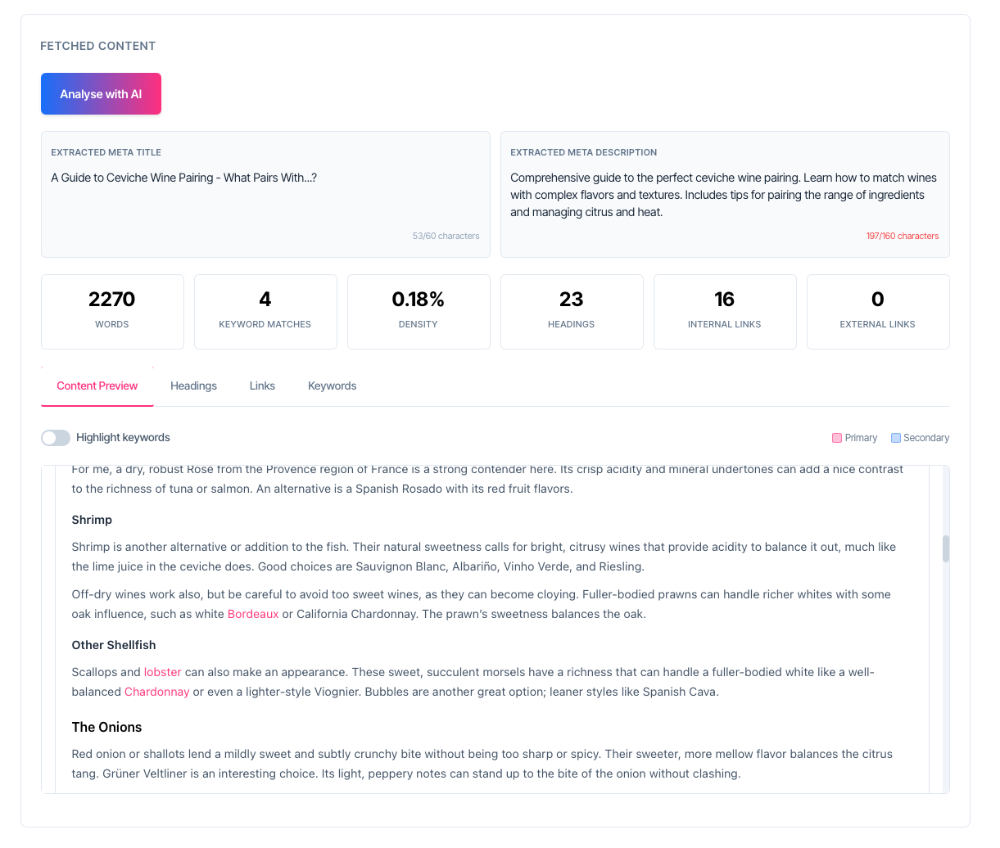
Paste your page URL into the Content URL field and click Fetch. The tool retrieves your page content, strips away unnecessary code, and analyses the text.
What happens next:
- A loading spinner appears while fetching
- Your content loads with all metrics calculated
- Four analysis tabs become available
- The AI analysis button activates
Understanding your results
Meta information
Your meta title and description appear at the top of the results. These are what search engines display in results pages.
Character counts matter:
- Meta title: Aim for under 60 characters (turns orange at 55, red over 60)
- Meta description: Keep under 160 characters (turns orange at 150, red over 160)
A tick mark ✓ next to each indicates your target keyword is present. A cross ✗ means it's missing—add it to improve your SEO.
Quick metrics dashboard
Six key numbers show at a glance:
- Words: Total word count of your content
- Keyword Matches: How many times your target keyword appears
- Density: Percentage of your content that's your keyword (aim for 1-2%)
- Headings: Total H1, H2, and H3 tags found
- Internal Links: Links pointing to other pages on your site
- External Links: Links pointing to other websites
The four analysis tabs
Content Preview tab
See your actual page content with optional keyword highlighting. Toggle the highlight switch to spot exactly where keywords appear.
Colour coding:
- Pink highlight = Primary keyword
- Blue highlight = Secondary keywords
This visual check helps you identify keyword stuffing (too many occurrences) or gaps where you should add your keyword naturally.
Headings tab
Displays your complete heading structure in order of appearance. Each heading shows its level (H1, H2, H3, etc.) and text.
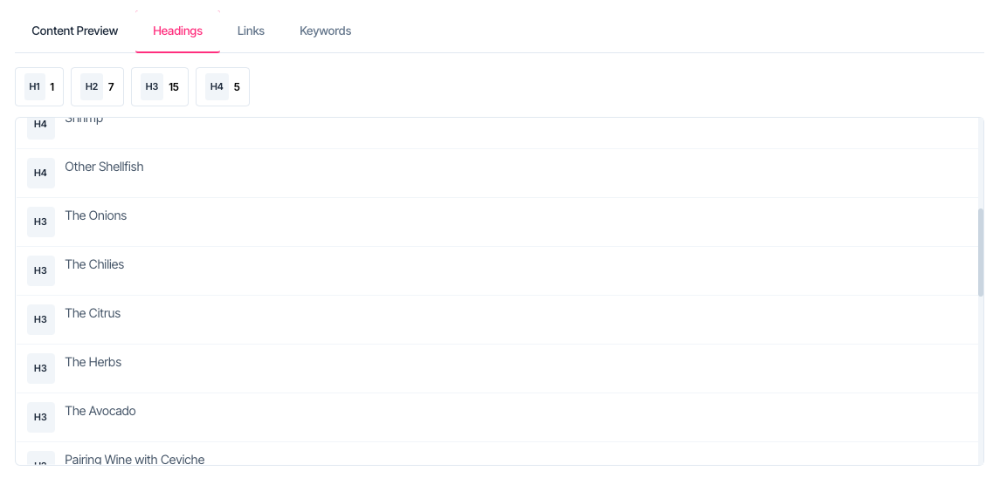
What the tool checks:
- ✓ You have exactly one H1 tag
- ✓ Your H1 contains your target keyword
- ⚠️ Warning if you have multiple H1s (bad for SEO)
- ⚠️ Warning if H1 is missing entirely
A summary at the top counts how many of each heading type exists. Use this to ensure proper content hierarchy.
Links tab
Lists every link on your page with its anchor text and destination. Filter between all links, internal only, or external only.
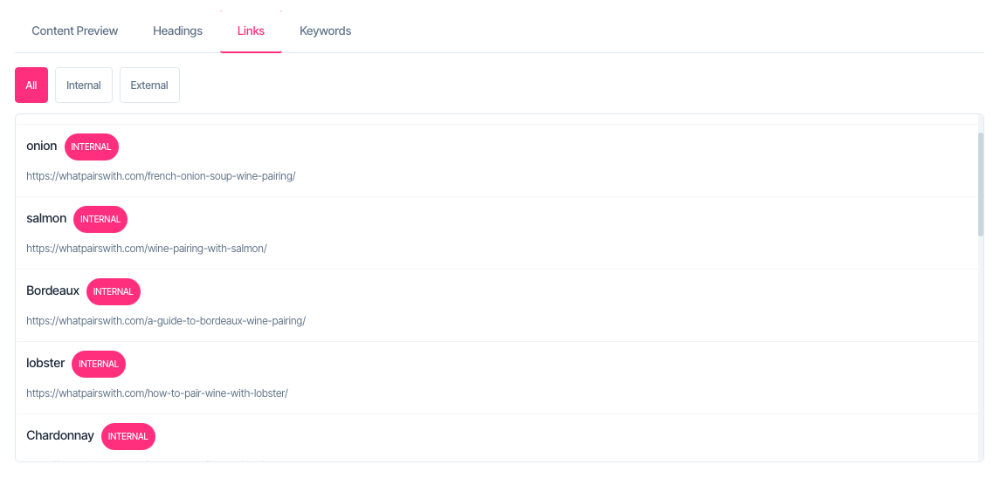
Colour indicators:
- Green anchor text = Contains your target keyword (good)
- Orange anchor text = Generic text like "click here" or "read more" (bad for SEO)
The tool warns you about generic anchor text. Replace "click here" with descriptive text like "download our SEO checklist" to improve both user experience and search rankings.
Keywords tab
Shows your most frequently used words, ranked by occurrence. This reveals your content's true focus.
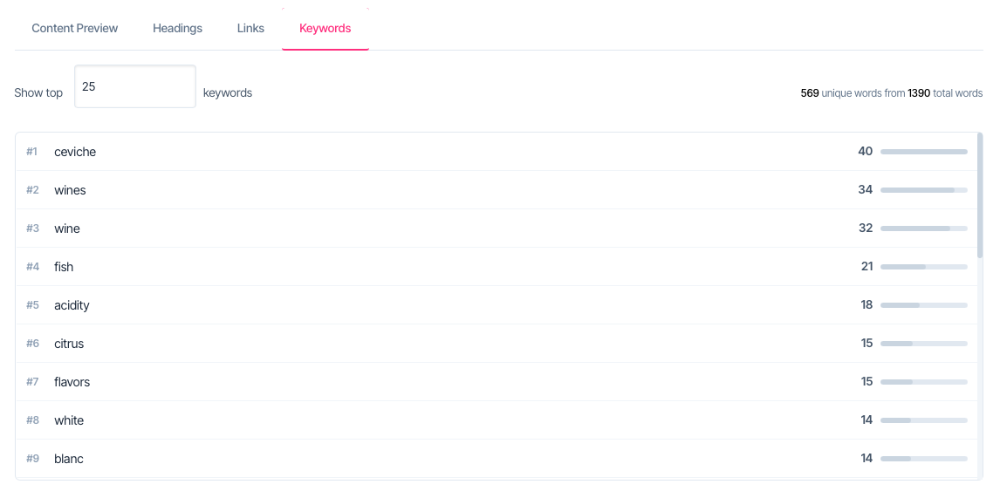
How to use it:
- Choose how many keywords to display (15, 25, 50, or 100)
- Look for your target keyword—it should appear near the top
- Primary keywords highlight in yellow
- Secondary keywords highlight in blue
If your target keyword ranks low, your content might not be focused enough. Consider adding more natural mentions throughout your text.
Advanced options
Click Advanced Options to access additional settings:
Content type
Select what kind of page you're analysing. Options include:
- Blog Post
- Product Page
- Landing Page
- Service Page
- Guide / Tutorial
- News Article
- Comparison Page
This helps the AI understand your content context when generating recommendations.
Secondary keywords
Add up to five related keywords, separated by commas. These are supporting terms that reinforce your main topic.
Example: For "content marketing strategy" you might add:
- content strategy
- digital marketing
- SEO tips
- blog optimisation
- content planning
Secondary keywords appear highlighted in blue throughout your content preview and keywords list.
SEO checks and warnings
The tool automatically runs these critical checks:
Meta optimisation:
- Target keyword in meta title (pass/fail)
- Target keyword in meta description (pass/fail)
- Character count within limits
Content quality:
- Target keyword appears in first 150 words (important for early relevance signals)
- Proper H1 structure (one H1 per page)
- H1 contains target keyword
- No generic anchor text on links
Green ticks indicate passed checks. Orange warnings suggest improvements. Red errors highlight critical issues to fix immediately.
AI Analysis
Once your content loads, click Analyse with AI to generate specific, actionable recommendations. The AI examines your page against SEO best practices and creates copy-paste ready fixes for every issue.
The button activates when:
- Content has been successfully fetched
- You've entered a target keyword
What the AI analyses
The AI performs a comprehensive technical SEO audit covering:
Meta tags:
- Title and description optimisation
- Keyword placement
- Character count compliance
- Exact character counts for every suggestion
Keyword optimisation:
- Current density and target range
- Placement in critical locations (title, H1, first 150 words)
- Natural language recommendations (no keyword stuffing)
Content structure:
- Heading hierarchy and organisation
- Readability assessment
- Content gaps your competitors cover
Entity coverage:
- Current entities found in your content
- Missing entities that strengthen topical authority
- Industry-specific terms and concepts
Link analysis:
- Internal linking distribution
- External link opportunities with specific URLs
- Anchor text quality
Understanding AI recommendations
Results appear immediately below your fetched content in an organised report.
Analysis Summary
The top section highlights:
- Primary Issues: The 3 most critical problems with specific numbers
- Quick Wins: Easy fixes with exact implementation steps
This gives you immediate clarity on where to focus first.
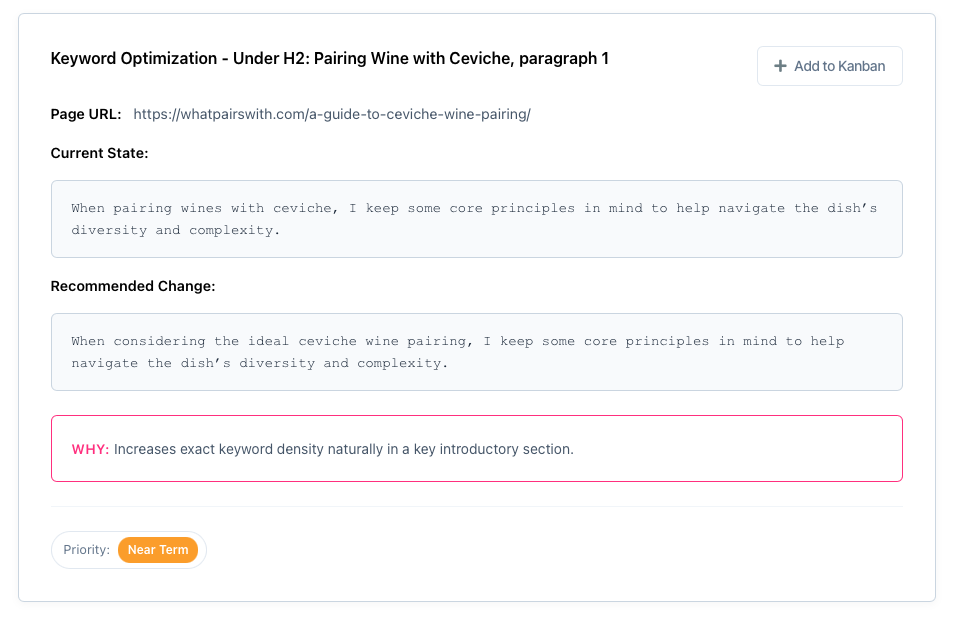
Actionable Recommendations
Every fix the AI finds appears as a separate recommendation card containing:
Title and location: Clear description of what needs changing and exactly where on your page
Page URL: The URL being analysed (helpful when working across multiple pages)
Current State: The exact text or element as it exists now
Recommended Change: Copy-paste ready replacement text. Simply copy this and update your page.
Character Count (for meta tags): The AI manually counts every character to ensure compliance with Google's limits:
- Title: 60 characters maximum
- Description: 150-160 characters
Justification: Explains the specific SEO impact this change will have
Priority badge:
- Immediate: Critical issues like missing H1, keyword not in title, or broken heading hierarchy
- Near Term: Important improvements like suboptimal structure or anchor text issues
- Can Wait: Minor refinements and optional enhancements
External link recommendations
When the AI suggests adding external links, it provides:
- Preview: How the linked text will appear
- HTML to copy: Ready-to-paste code with proper formatting
- External URL: The specific authoritative source (real, verifiable URLs only)
The AI only recommends links to trusted sources like:
- Industry standards bodies
- Government departments
- University research
- Reputable trade organisations
- Wikipedia for factual topics
Example sources:
- https://sca.coffee/ - Specialty Coffee Association
- https://www.ico.org/ - International Coffee Organization
- https://www.fairtrade.net/ - Fairtrade International
Detailed Analysis accordion
Click Detailed Analysis to expand full context sections. These explain the reasoning behind recommendations but don't require action—all actionable items appear in the recommendations cards above.
What's included:
Meta Tag Analysis:
- Full assessment of title and description
- Issues identified
- Why changes matter
Keyword Density Analysis:
- Current vs target density
- Placement evaluation
- Natural language guidance
Entity Analysis:
- Visual tags showing found entities
- Missing entities highlighted
- Topical authority explanation
Content Structure:
- Readability score (poor/fair/good/excellent)
- Heading issues summary
- Content gaps analysis
Internal Linking Audit:
- Total link count
- Distribution assessment
- Health overview
External Link Opportunities:
- Why external links help E-E-A-T signals
- Suggested authoritative sources
- Topic relevance explanation
Adding recommendations to Kanban
Every recommendation card includes an Add to Kanban button. This creates a task card in your project Kanban board with all details pre-filled:
What gets transferred:
- Task title (the specific recommendation)
- Page URL
- Current state
- Recommended action
- Priority level
- Justification
How it works:
- Click Add to Kanban on any recommendation
- Select which project to add the task to
- The button changes to show "Added" with a tick mark
- Find your task in the project's Kanban board
This lets you track implementation progress and assign recommendations to team members.
AI recommendations are independent
Each recommendation stands alone. You can implement them in any order without dependencies on other changes. The AI references only existing content on your page, never content from other recommendations.
Example:
Instead of saying "Add this sentence after the one from recommendation #3", the AI says "Add this sentence after 'Coffee grows best at high altitude.'" — referencing content that's actually on your page now.
This means you can:
- Implement high-priority items immediately
- Skip recommendations you disagree with
- Work on different sections simultaneously
- Share specific recommendations with different team members
Quick wins checklist
After analysing your page, focus on these high-impact improvements:
- Add your keyword to meta title and description if missing
- Include your keyword in the first 150 words of content
- Ensure you have exactly one H1 tag containing your keyword
- Replace generic anchor text ("click here") with descriptive phrases
- Check keyword density sits between 1-2%
- Add secondary keywords naturally throughout your content
- Run AI analysis to get exact, copy-paste ready fixes for all issues
Common questions
Why does the character count turn orange or red?
Search engines truncate text that's too long. Orange warns you're approaching the limit. Red means your text will be cut off in search results.
What's a good keyword density?
Aim for 1-2%. Below 0.5% suggests weak optimisation. Above 3% risks keyword stuffing penalties.
Should every heading contain my keyword?
No. Your H1 should contain it. Other headings should vary naturally while staying on topic.
Why are some keywords highlighted that aren't exact matches?
The tool uses fuzzy matching for single-word keywords. If your target is "marketing", words like "marketer" also highlight. Multi-word phrases require exact matches.
What makes anchor text "generic"?
Phrases like "click here", "read more", "this article", or "learn more" tell search engines nothing about the link destination. Descriptive anchor text improves both SEO and accessibility.
How does the tool identify internal versus external links?
It extracts your domain from the fetched URL. Links pointing to that same domain (or subdomains) count as internal. All others count as external.
Why highlight secondary keywords?
They prove topical depth. Pages ranking well typically mention related terms. Blue highlights show where these supporting keywords appear naturally in your content.
Can I trust the external links the AI suggests?
Yes. The AI only recommends real, verifiable URLs to authoritative sources. It never fabricates URLs or suggests placeholder links. If it can't identify a safe, authoritative source, it explains why in the detailed analysis instead of making a recommendation.
Why does the AI use my existing tone and spelling?
The AI detects your page's writing style, formality level, and regional language variant (UK vs US English). All recommendations match your existing style to maintain consistency. For example, if your page uses UK spelling like "optimisation", the AI will too.
What if I disagree with a recommendation?
Every recommendation is independent and optional. You can skip any that don't fit your strategy or brand voice. The priority badges help you focus on critical issues first, but you decide what to implement.
Can I re-run the analysis after making changes?
Yes. Enter the same URL and click Fetch again. The tool and AI will analyse your updated content, showing what's improved and what still needs work.
Will the AI analysis use my credits?
Yes. The AI analysis consumes credits from your account based on the complexity of the analysis and length of your content. Your remaining credit balance displays in your account dashboard.
How many recommendations will I get?
This varies based on your content quality. A well-optimised page might generate 3-5 recommendations for minor refinements. A page needing significant work could generate 15-20 actionable items. The AI prioritises them so you know where to start.