
Action Board
Drag-and-drop task management for digital marketing workflows—turning AI recommendations and manual tasks into organised, trackable actions.
Quick start
1. Open Action Board from the main navigation
2. Click + in any column to create a task
3. Assign a project, set priority, and add a due date
4. Drag cards between columns as work progresses
Understanding the display
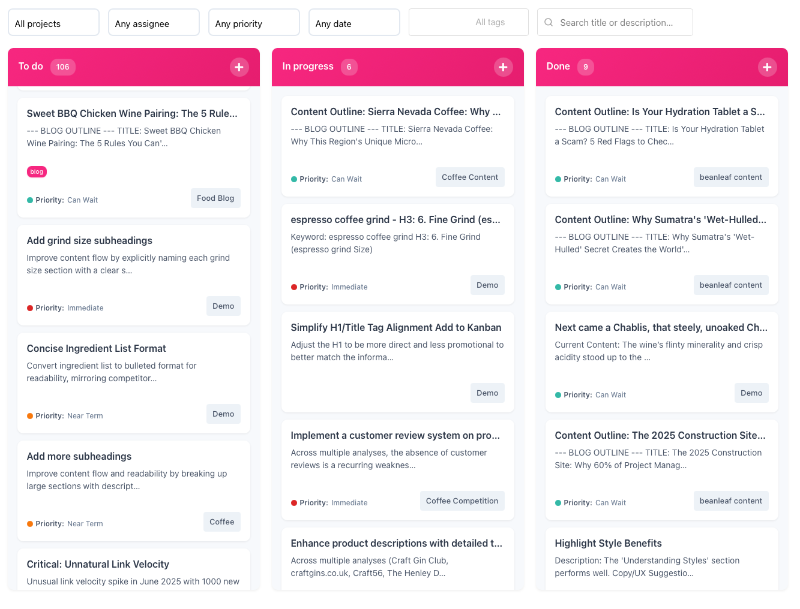
The board uses three columns representing task status:
| Column | Purpose |
| Todo | Tasks waiting to start |
| Doing | Work in progress |
| Done | Completed tasks |
Each card displays the task title, description preview, due date, priority badge, project name, and any assigned tags. Drag cards between columns to update status automatically.
Priority levels
| Priority | Meaning |
| Immediate | Large gaps on high-volume keywords—action within 1–2 weeks |
| Near-term | Moderate gaps or unstable rankings—action within 1–2 months |
| Can-wait | Minor improvements—address when time permits |
What should I do next?
Task priority determines where to focus effort:
| Situation | Action |
| Many Immediate tasks | Focus here first. These deliver the highest impact. |
| Balanced workload | Work through Immediate items, then Near-term. |
| Todo column overflowing | Use filters to identify highest-priority items. |
| Tasks from AI Analysis | Review recommendations, edit if needed, then begin work. |
| Completed milestone | Archive Done column periodically to maintain clarity. |
Using the filters
The filter bar narrows visible tasks across all columns:
| Filter | Function |
| Project | Show tasks for one project only |
| Assigned | Show tasks assigned to a specific team member |
| Priority | Show tasks matching a priority level |
| Due | Show tasks due within a timeframe (overdue, 7 days, 30 days, none) |
| Tags | Show tasks with specific tags |
| Search | Find tasks containing specific text |
Filters combine—selecting a project and priority shows only matching tasks. Clear filters by resetting dropdowns to their default values.
Creating tasks
Tasks can be created manually or added from AI Analysis recommendations.
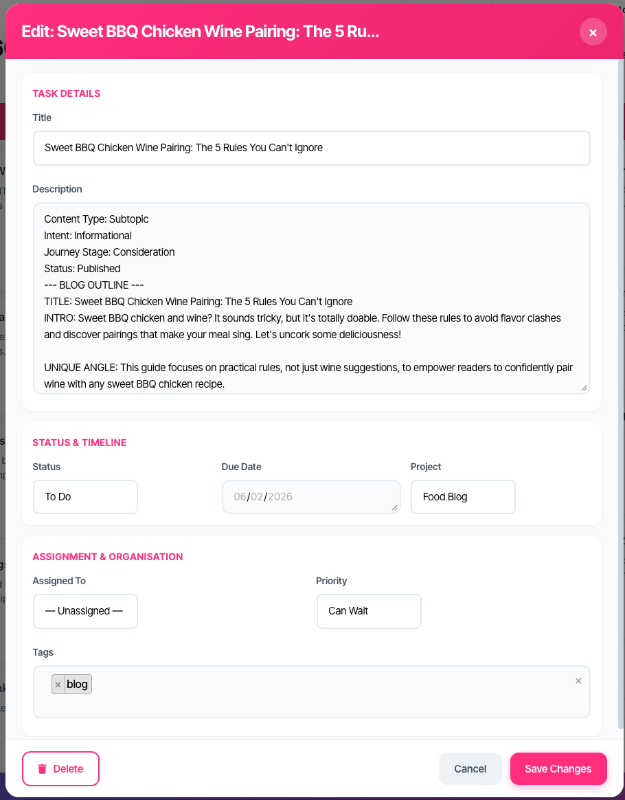
Manual creation
5. Click + in the target column
6. Enter a title and description
7. Select a project (required)
8. Set priority, due date, and assignee as needed
9. Click Save Changes
From AI Analysis
AI Analysis (from Average Position Chart or Page Analysis) generates recommendations that can be added directly to Action Board. Click
+ Add to Kanban on any recommendation, select the project board, and the task creates with all context pre-filled.
Managing tasks
Editing
Click any card to open the edit modal. All fields can be modified. Changes save when clicking
Save Changes.
Moving between columns
Drag cards to change status. Cards can also be reordered within a column to adjust priority visually.
Deleting
Hover over a card and click the trash icon to delete. Deletion is immediate—no confirmation required.
Tags
Tags organise tasks across projects. Create new tags by typing a name in the tag selector—if the tag doesn't exist, it creates automatically.
Common tag strategies:
• Content type (blog, landing page, product page)
• Campaign or initiative name
• Team or department
• Quarter or sprint
Troubleshooting
No tasks visible
Filters may be too restrictive, or the selected workspace has no tasks yet.
• Reset all filters to default values
• Verify the correct workspace is selected
• Create a new task to confirm access
Cannot assign team member
The team member may not have access to the selected project.
• Verify the user has project access in account settings
• Ensure the correct project is selected
Drag and drop not working
Browser compatibility or script loading issues may prevent drag functionality.
• Refresh the page
• Clear browser cache
• Try a different browser
FAQ
Can tasks be assigned to multiple people?
Each task has one assignee. For collaborative work, use tags to indicate team involvement and create subtasks as separate cards.
Do deleted tasks go to a recycle bin?
Deleted tasks are removed permanently. Export important data before deleting.
How do tasks from AI Analysis differ from manual tasks?
AI-generated tasks include structured context: keyword, page URL, current state, and recommended action. This context appears in the task description and helps track the original recommendation.
Can tasks be shared across workspaces?
Tasks belong to projects, and projects belong to workspaces. Switching workspaces shows different task sets.
Getting help
Contact support for persistent technical issues