
Manage Tags
Create, organise, and manage tags for categorising tasks across projects and workspaces.
Quick start
1. Open Tag Manager from the main navigation
2. Enter a tag name in the Add New Tag form
3. Click Add Tag
4. Apply the tag to tasks in Action Board
Understanding the display
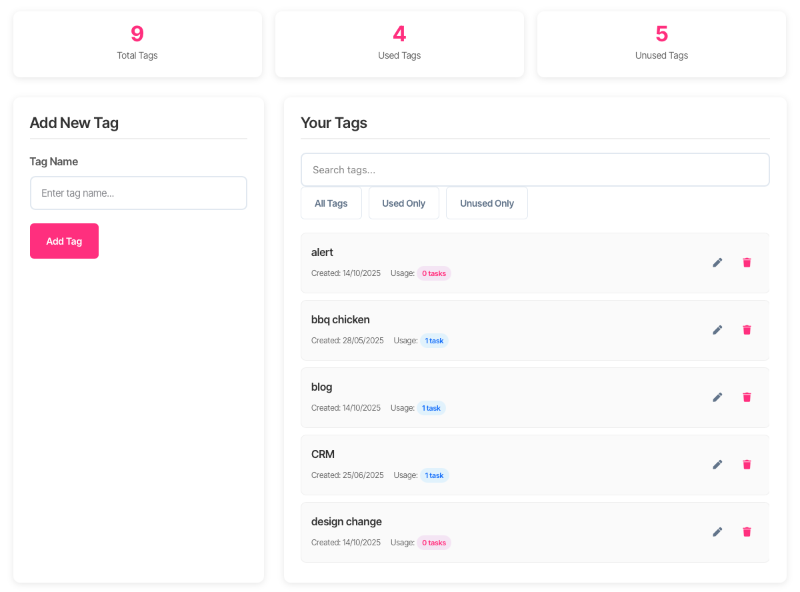
The dashboard shows three statistics at the top:
| Statistic | Meaning |
| Total Tags | All tags in the current workspace |
| Used Tags | Tags assigned to at least one task |
| Unused Tags | Tags not currently assigned to any task |
The tag list displays each tag with its name, creation date, usage count, and ownership status. Tags marked "Shared" belong to other users in the workspace but are visible for reference.
What should I do next?
Tag management depends on current needs:
| Situation | Action |
| Starting a new project | Create tags for content types, campaigns, or team areas. |
| Too many unused tags | Filter to Unused Only and delete obsolete tags. |
| Finding specific tags | Use the search box to filter by name. |
| Consolidating duplicates | Delete the duplicate (if unused) or rename for clarity. |
| Shared tag needs editing | Contact the tag owner—only owners can edit their tags. |
Creating tags
5. Enter the tag name (maximum 50 characters)
6. Click Add Tag
7. The tag appears in the list immediately
Tag names are unique within each workspace. Attempting to create a duplicate returns an error. Name matching is case-insensitive—"Marketing" and "marketing" are treated as the same tag.
Editing tags
Only tags owned directly can be edited. Shared tags display "View Only" instead of edit controls.
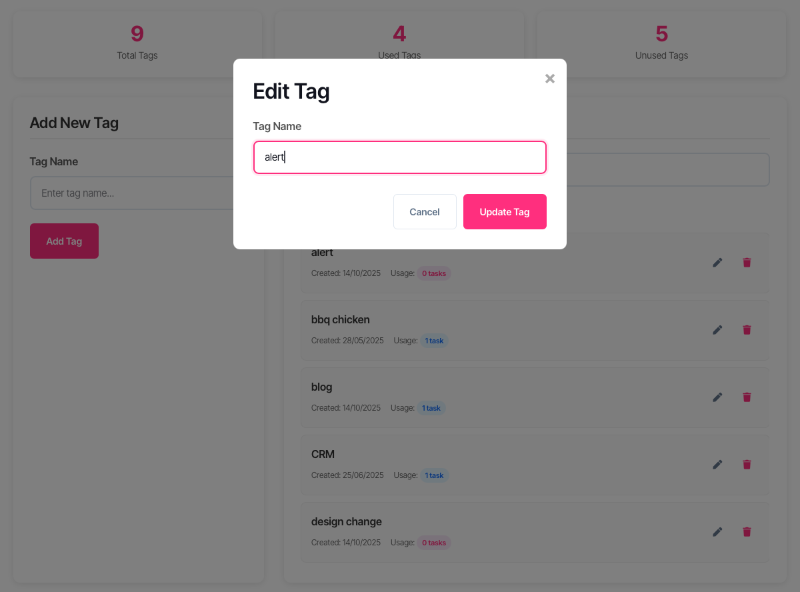
8. Click the pencil icon next to the tag
9. Enter the new name
10. Click Update Tag
Renaming a tag updates it everywhere—all tasks using the tag reflect the new name immediately.
Deleting tags
Tags can only be deleted by their owner.
Unused tags
11. Click the trash icon next to the tag
12. Confirm deletion in the modal
Tags in use
When a tag is assigned to tasks, deletion requires confirmation. The system displays how many tasks use the tag. Confirming deletion removes the tag from all associated tasks.
Filtering and searching
Filter buttons
| Filter | Shows |
| All Tags | Every tag in the workspace |
| Used Only | Tags assigned to at least one task |
| Unused Only | Tags with zero assignments |
Search
The search box filters tags by name as characters are typed. Search and filter work together—searching while "Used Only" is active shows only used tags matching the search term.
Workspace behaviour
Tags are workspace-scoped. Each workspace maintains its own set of tags. Switching workspaces refreshes the tag list to show only tags belonging to that workspace.
Tags created in one workspace are not visible in other workspaces. This allows different teams or projects to maintain independent tagging systems without conflict.
Troubleshooting
"Tag with this name already exists"
A tag with the same name (case-insensitive) exists in this workspace.
• Search for the existing tag
• Use a more specific name
• Check if the existing tag is shared from another user
Cannot edit or delete a tag
The tag belongs to another user. Only tag owners can modify their tags.
• Contact the tag owner to request changes
• Create a new tag with the preferred name
Tags disappeared after switching workspaces
Tags belong to specific workspaces. The previous tags still exist—switch back to that workspace to see them.
Tag not appearing in Action Board
Ensure the correct workspace is selected in both Tag Manager and Action Board. Tags only appear when the workspace matches.
FAQ
What happens to tasks when a tag is deleted?
The tag is removed from all tasks. Task content remains unchanged—only the tag association is deleted.
Can tags be moved between workspaces?
Tags cannot be moved. Create the tag in the target workspace and reassign tasks manually.
Is there a limit to how many tags can be created?
No hard limit exists. However, maintaining a manageable number of tags improves usability.
Can two users create tags with the same name?
Within the same workspace, tag names are unique across all users. If a tag name exists (regardless of owner), a duplicate cannot be created.
How do shared tags work?
Tags created by other users in the workspace are visible and can be applied to tasks. Only the original owner can edit or delete them.
Getting help
13. Verify workspace selection if tags appear missing
14. Check ownership status if edit controls are unavailable
15. Contact support for persistent technical issues