
Manage Brands and Competitors
Configure which brands belong to you and which competitors appear by default on AI Visibility charts.
Quick start
1. Open AI Visibility Settings from the main menu
2. Select the project to configure
3. Review suggested brands and add any missing ones to Your Brands
4. Select up to eight default competitors
5. Click Save Settings
Understanding the display
The settings page displays two sections: Your Brands and Default Competitors. Both sections draw from the same pool of discovered brands—names extracted from AI responses over the past 90 days.
Your Brands section
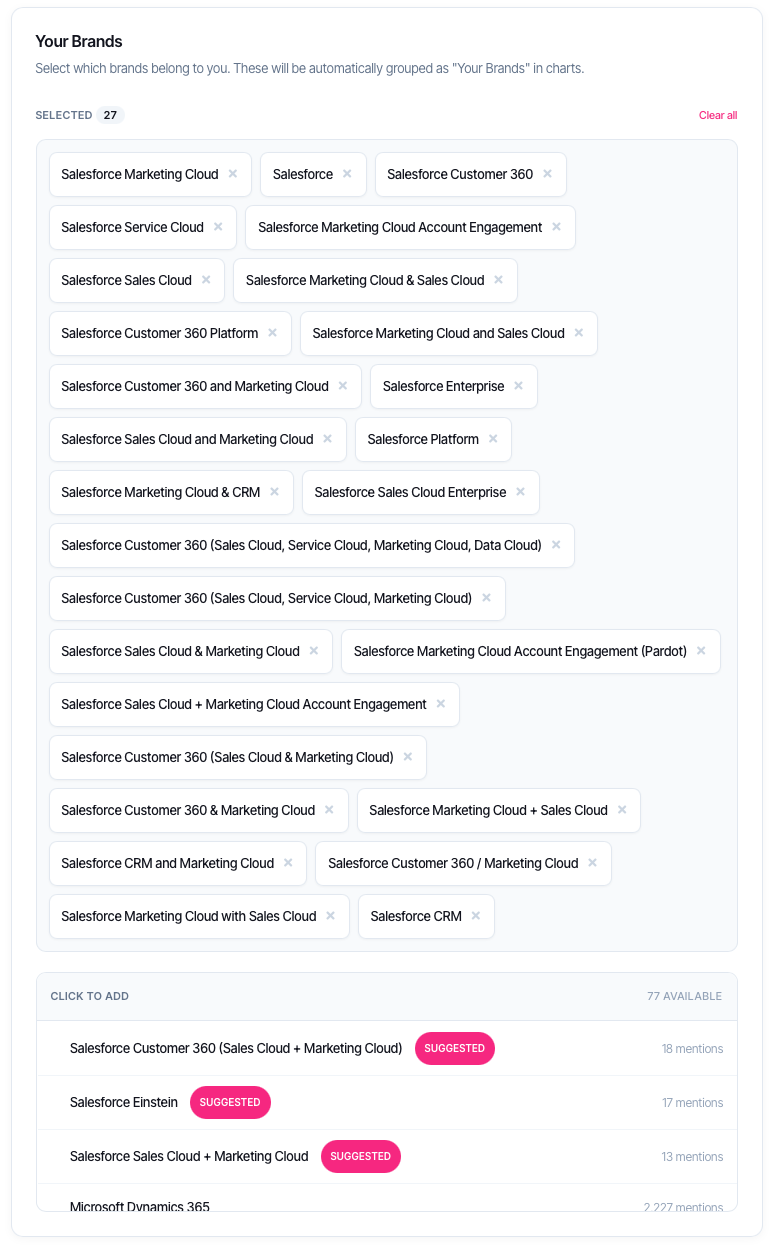
This section defines which brands belong to you. Selected brands are grouped together as 'Your Brands' in AI Visibility charts, making it easier to track performance against competitors.
Suggested badges appear next to brands that match your company names from AI monitoring configurations. These are pre-selected when no settings have been saved.
Default Competitors section
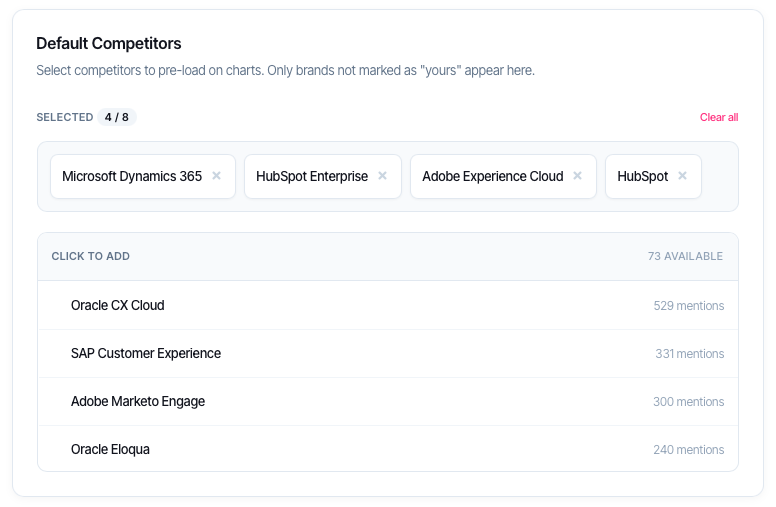
This section sets which competitors appear by default when opening AI Visibility charts. Select up to eight competitors from brands not marked as yours.
Default competitors provide a consistent baseline for comparison without needing to select them each time.
What should I do next?
The right action depends on the current state:
| Situation | Action |
| First time setup with suggested brands | Review the suggestions, remove any that aren't yours, add any missing brands, then save. |
| Suggested brands are incorrect | Clear all, manually select the correct brands from the available list, then save. |
| New brand discovered | Open settings, add the brand to the appropriate section, save. |
| Competitor no longer relevant | Remove from Default Competitors, optionally add a replacement, save. |
| Charts showing wrong groupings | Verify Your Brands settings—brands listed here appear grouped in charts. |
Selecting brands
Adding a brand
1. Locate the brand in the available list below the selected tags
2. Click the brand name to add it
3. The brand moves to the selected tags area
Brands marked as yours cannot be selected as competitors—they're automatically excluded from the competitors list.
Removing a brand
1. Find the brand in the selected tags area
2. Click the X icon next to the brand name
3. The brand returns to the available list
Clearing all selections
Click 'Clear all' next to the section count to remove all brands from that section. This is useful when starting fresh or correcting incorrect suggestions.
Saving settings
Changes are tracked but not applied until saved. The status indicator shows:
| Status | Meaning |
| Unsaved changes | Modifications exist that haven't been saved yet. |
| All changes saved | Current settings match what's stored. |
Click Save Settings to apply changes. Settings take effect immediately on AI Visibility charts.
Navigation warning: Leaving the page with unsaved changes triggers a confirmation prompt. Choose to discard or stay and save.
Troubleshooting
No brands appear in the available list
Brands are discovered from AI responses. If the list is empty:
• Verify the project has AI monitoring configurations
• Check that AI checks have run in the past 90 days
• Confirm the correct project is selected
Expected brand is missing
A brand only appears if it was mentioned in AI responses for the selected project. If a brand is missing:
• The brand may not have appeared in AI results yet
• The brand may be spelled differently in AI responses
• Check other projects if the brand might be tracked elsewhere
Cannot add more competitors
The maximum is eight default competitors. Remove an existing competitor before adding a new one.
Save button is disabled
The save button is disabled when no changes exist. Make a modification to enable it.
Settings not reflected in charts
After saving, refresh any open AI Visibility charts. Settings apply to newly loaded charts automatically.
FAQ
Where do discovered brands come from?
Brands are extracted from AI responses collected over the past 90 days. SERP360 identifies brand names mentioned when AI systems answer questions related to tracked keywords.
Why are some brands suggested automatically?
SERP360 compares discovered brands against company names configured in AI monitoring settings. Matches are suggested as 'Your Brands' to speed up initial setup.
Can the same brand be in both sections?
No. A brand belongs to either Your Brands or Default Competitors, not both. Adding a brand to Your Brands automatically removes it from competitors.
What happens if I don't configure these settings?
AI Visibility charts work without configuration, but brands won't be grouped. Charts display all brands individually without distinguishing between yours and competitors.
Are settings shared across projects?
No. Each project has independent brand and competitor settings. This allows different configurations for different websites or regions.
How often is the brand list updated?
The discovered brands list updates as new AI responses are processed. New brands appear within 24 hours of first being mentioned.
Getting help
Contact support for persistent issues with brand discovery or settings not saving